


I have new contractors who need to be trained on how to use SiVIEW, or I want to replay an exam with SiVIEW. How can I perform a full exam without it being counted in the statistics of my dashboard ?
Here is how to start a training exam with the SiVIEW solution.
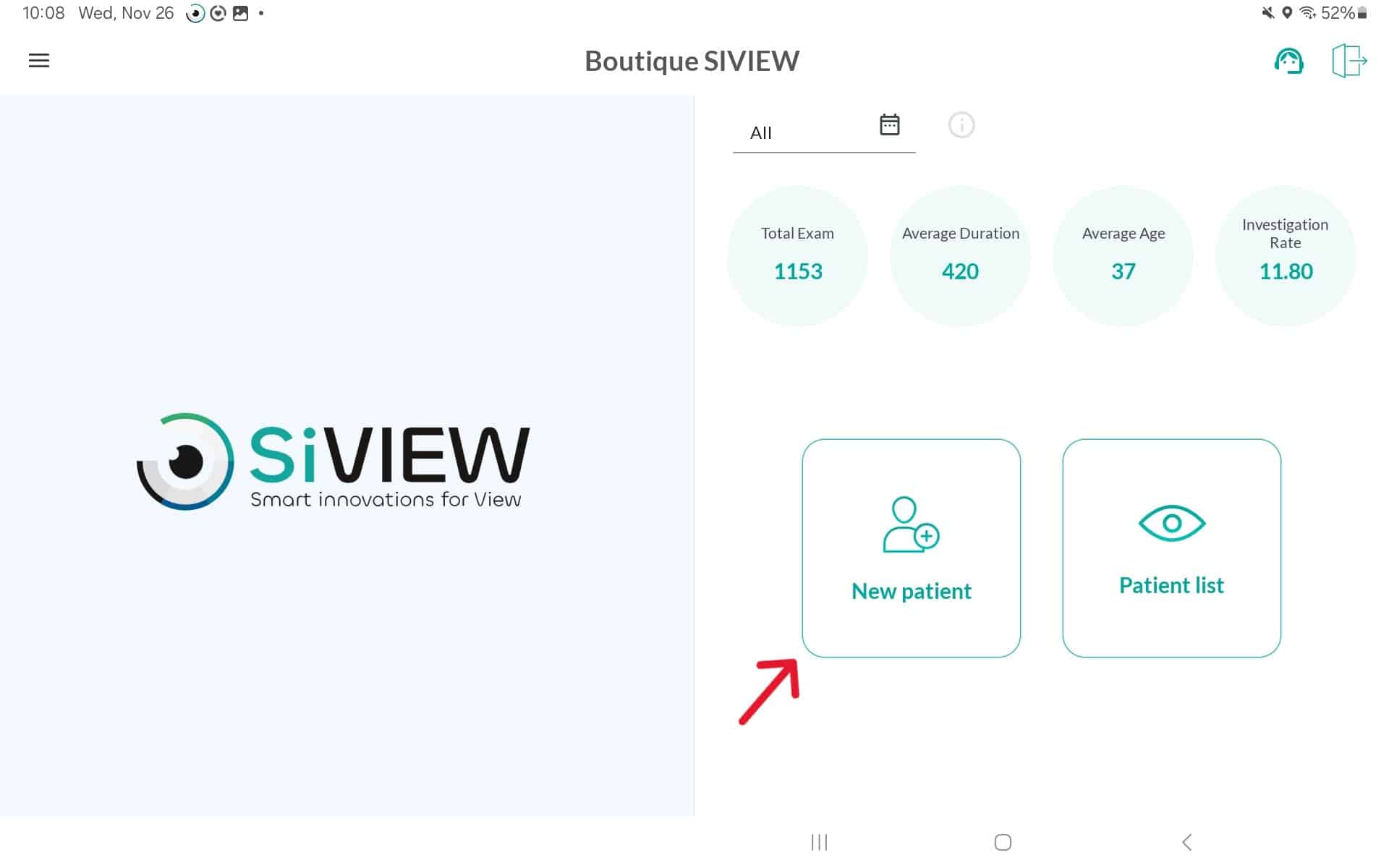
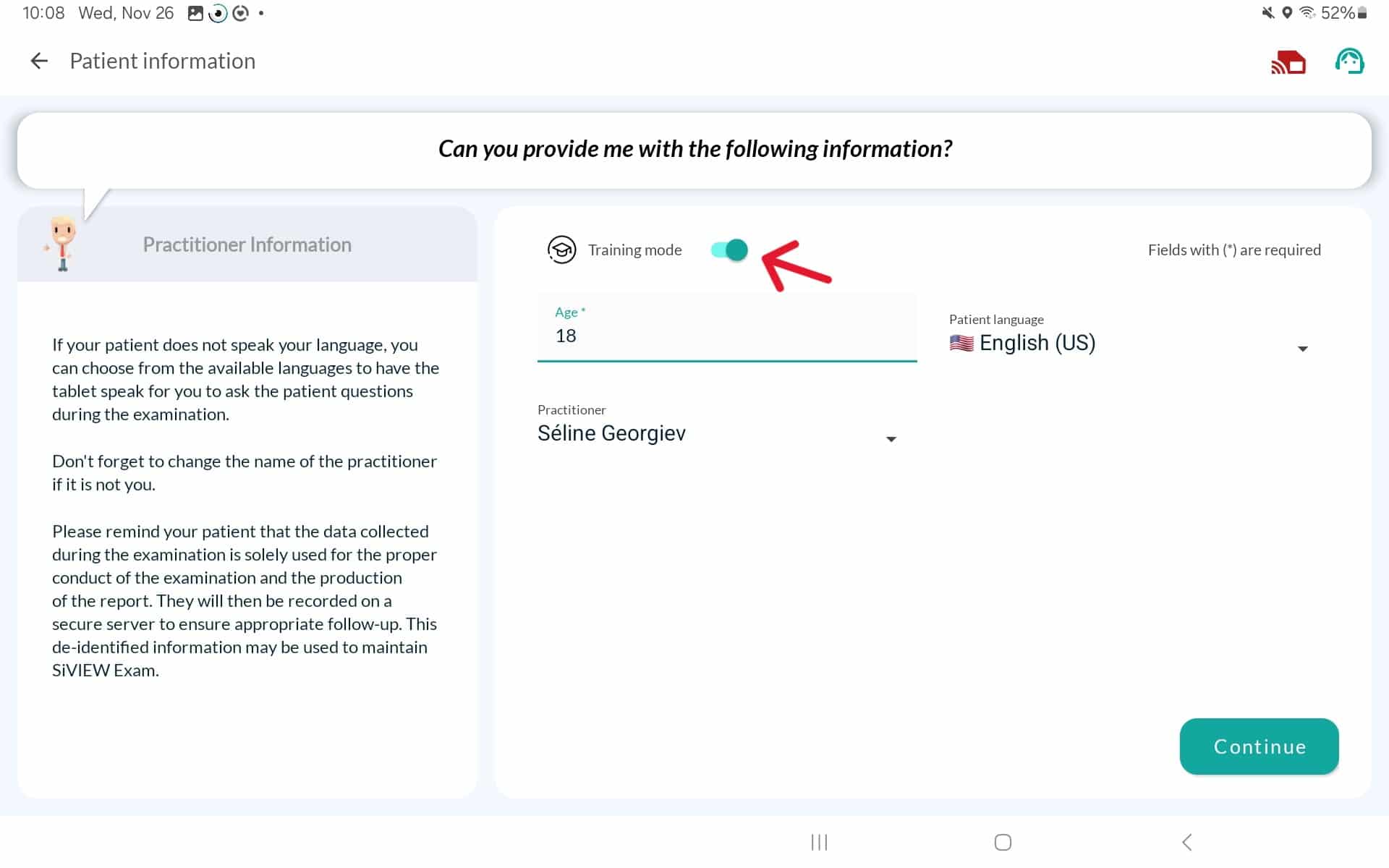
To enable training mode, click the ‘Training mode” button.
When training mode is enabled, the form is simplified with fewer fields to fill in. You only need to enter:
The patient’s date of birth
The practitioner’s name
The patient’s language
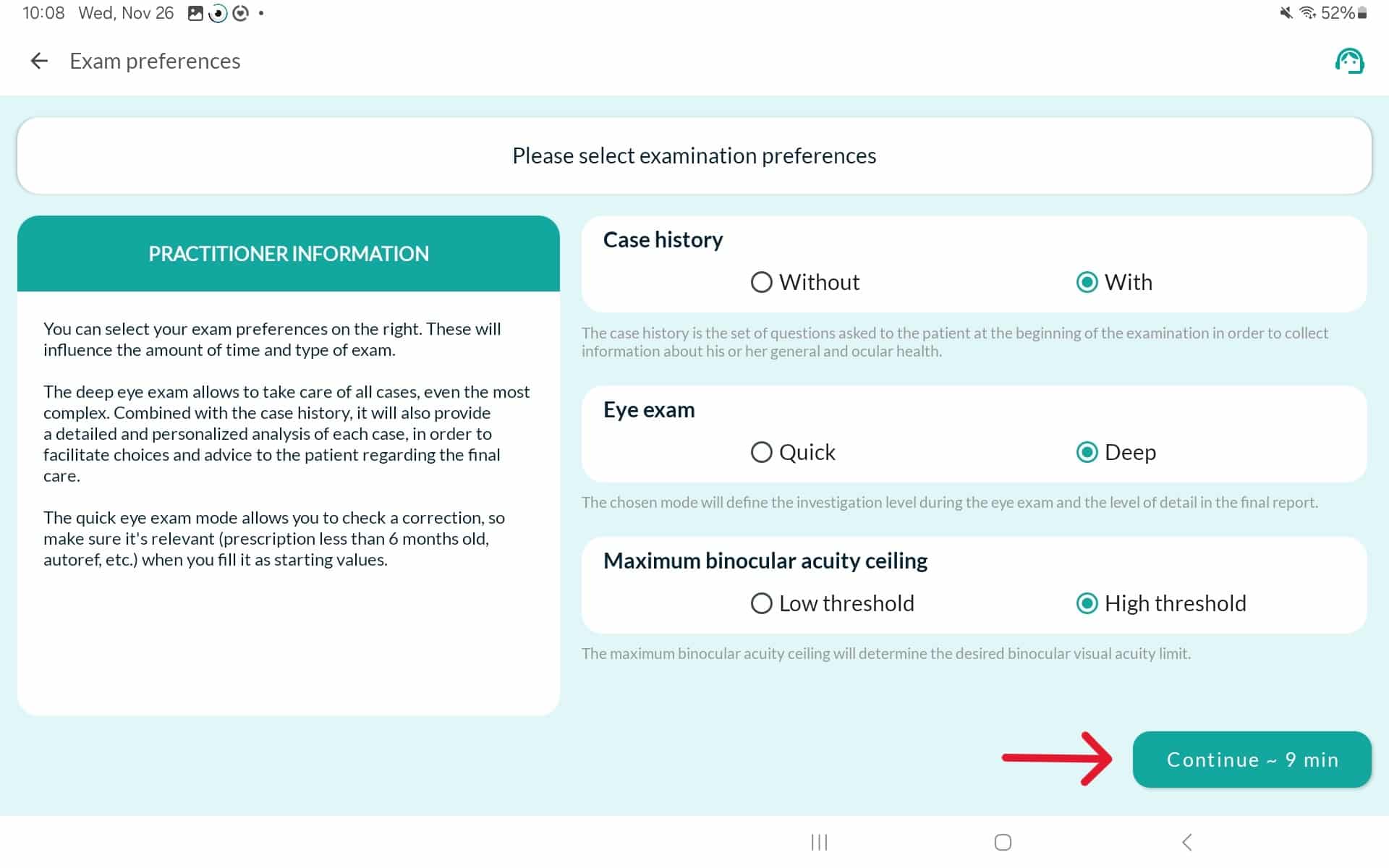
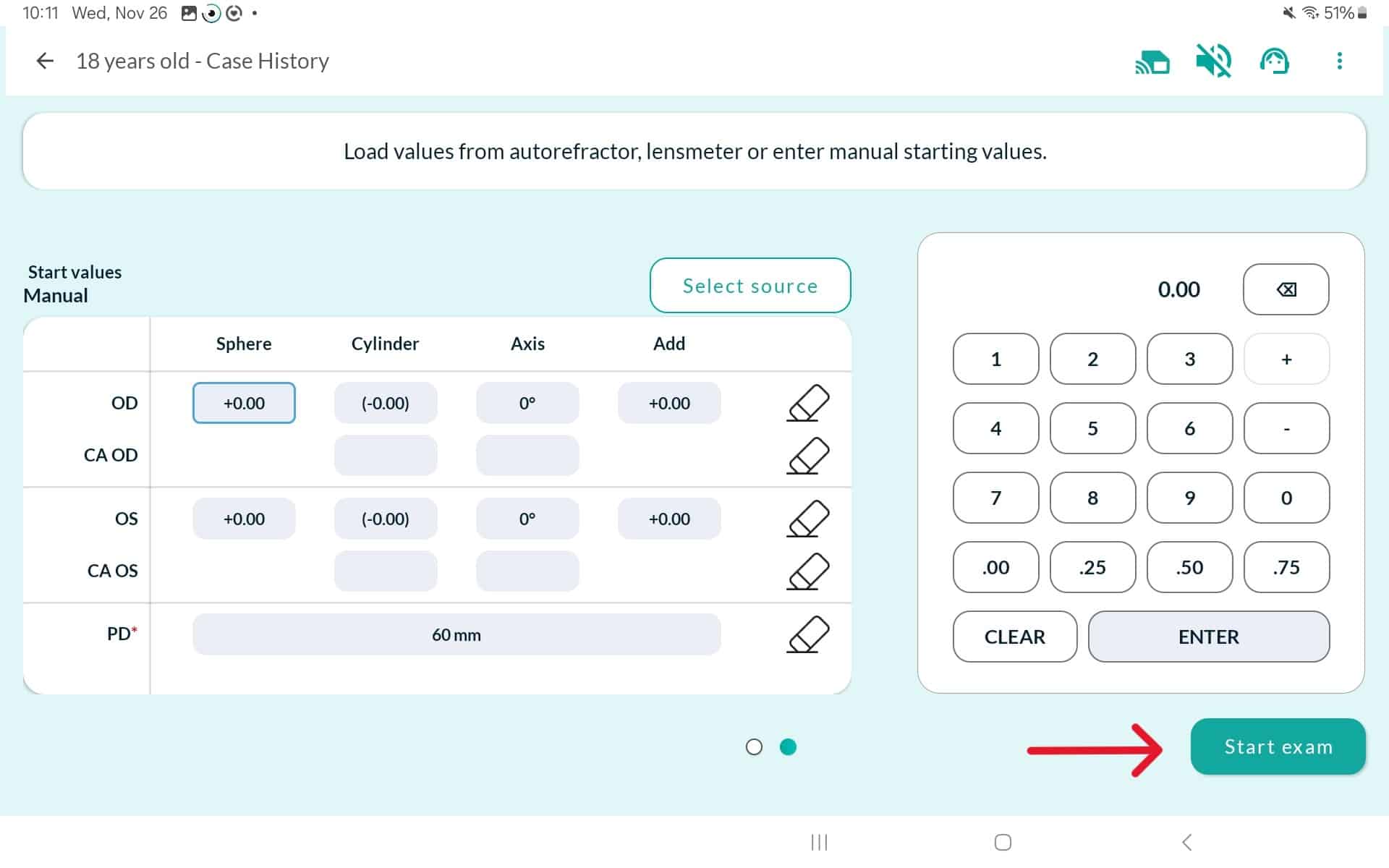
Once this information is entered, continue through the “Exam Preferences” setup steps until the vision test begins.
We hope this article has been helpful and that you found all the answers you were looking for.
If you need any further assistance, please feel free to contact us.