How to check and re-pair connected refraction devices in the SiVIEW Exam app

🤔Problem description

  • I can’t start an exam.
  • My tablet was replaced due to loss, theft, or malfunction and has recently been re-paired.
  • The application had to be reinstalled.

🛠 Solution

Here’s how to check if your refraction devices are properly connected to the SiVIEW box in the SiVIEW exam application
Step 1: Log in to the SiVIEW Exam application

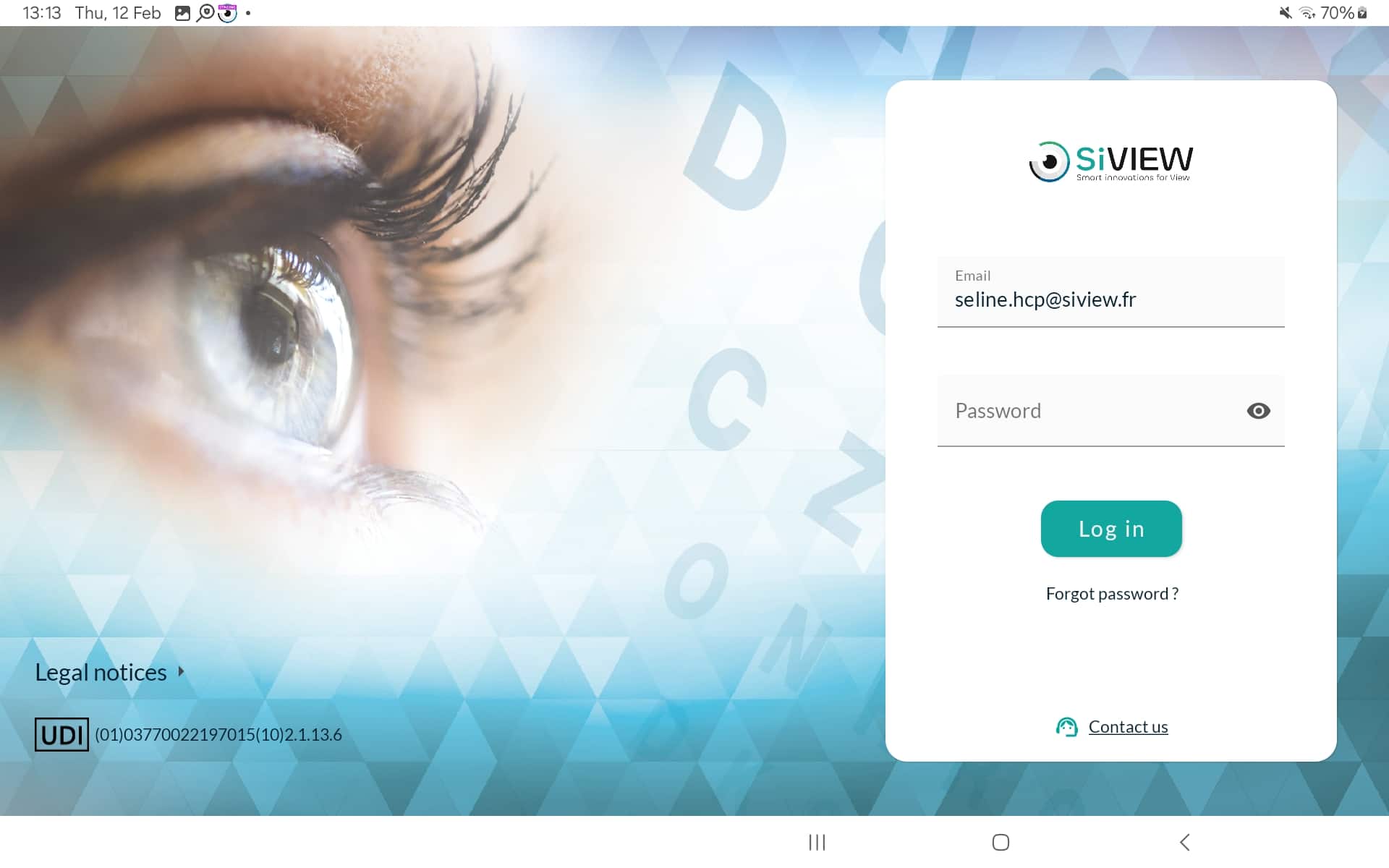
  • Launch the SiVIEW Exam application and log in to your SiVIEW account.

Step 2: Access the main menu

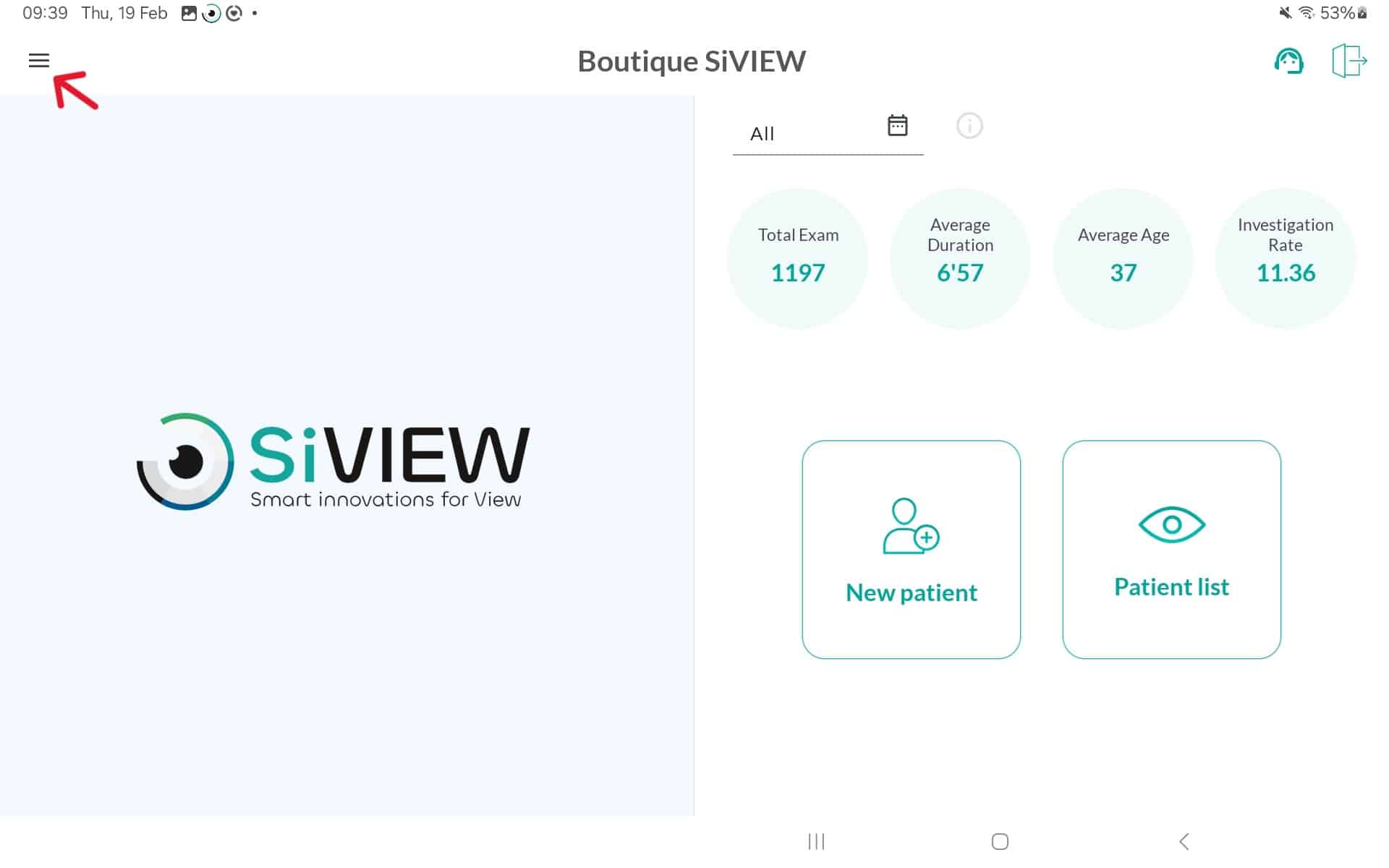
  • Select the “burger” menu in the upper-left corner of the screen.

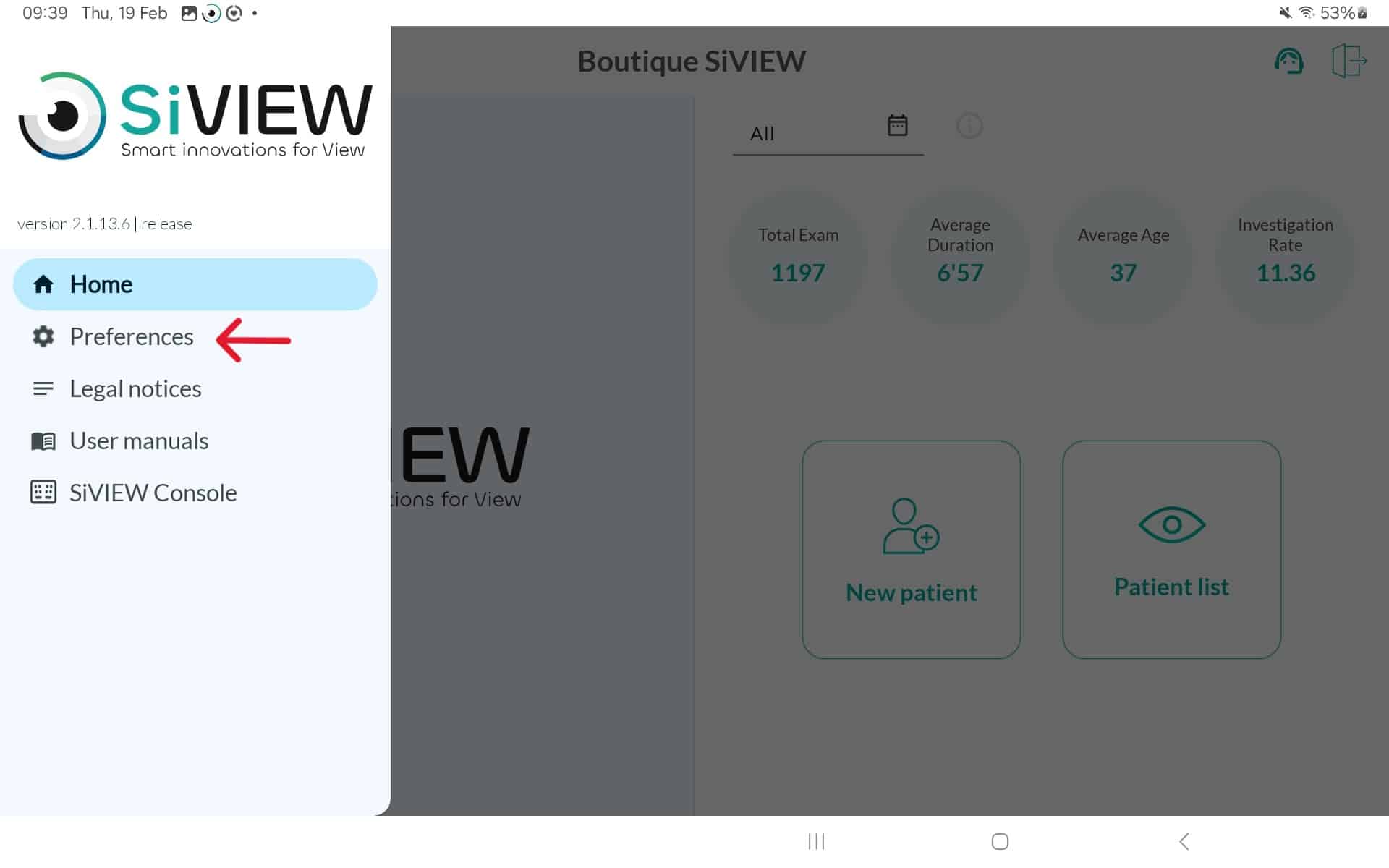
Step 3: Open the preferences

  • In the dropdown menu, select “Preferences

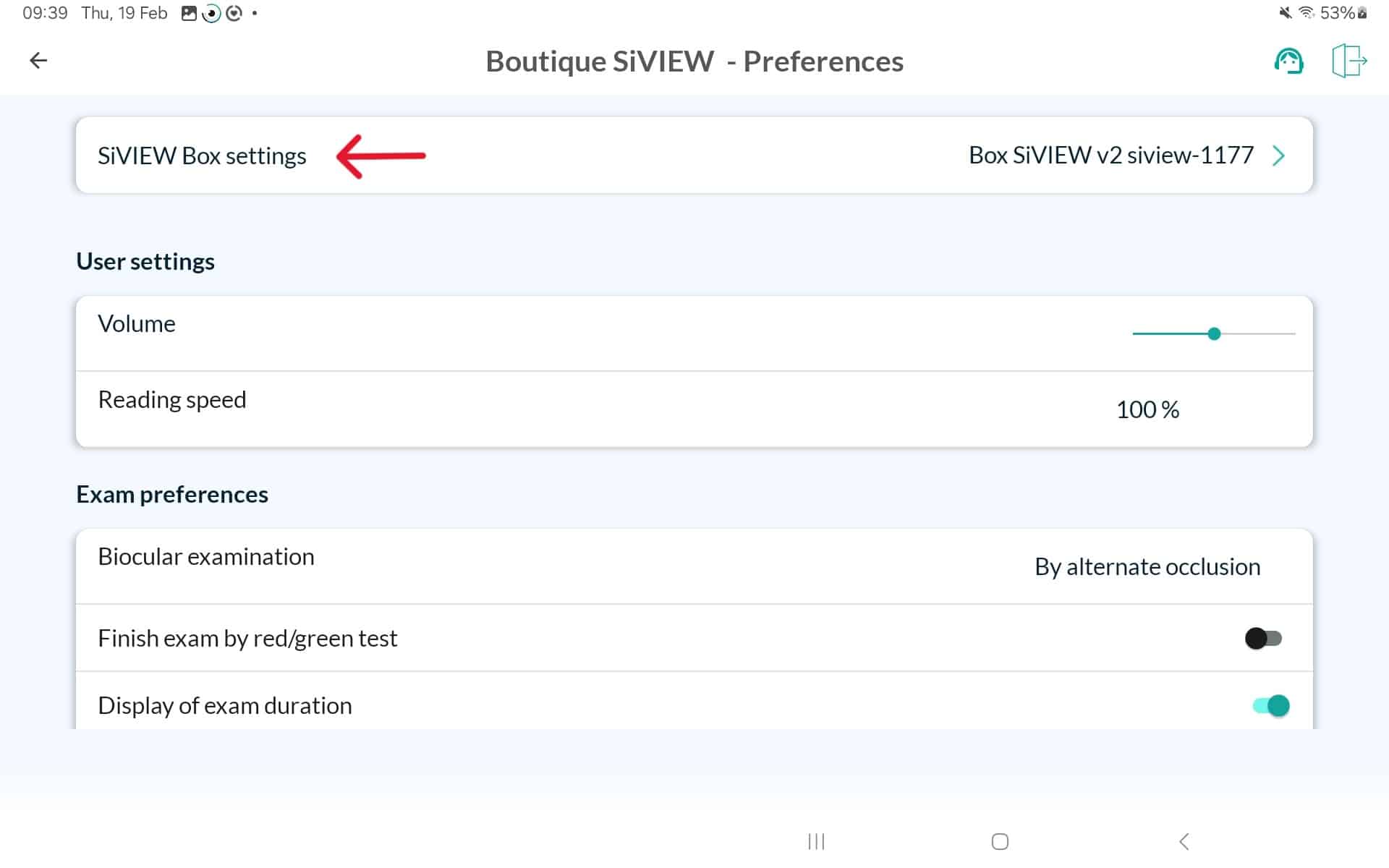
Step 4: Go to the settings

  • Select “Box Settings” by clicking several times on the store name located at the top of the screen.

Step 5: Check the list of connected devices

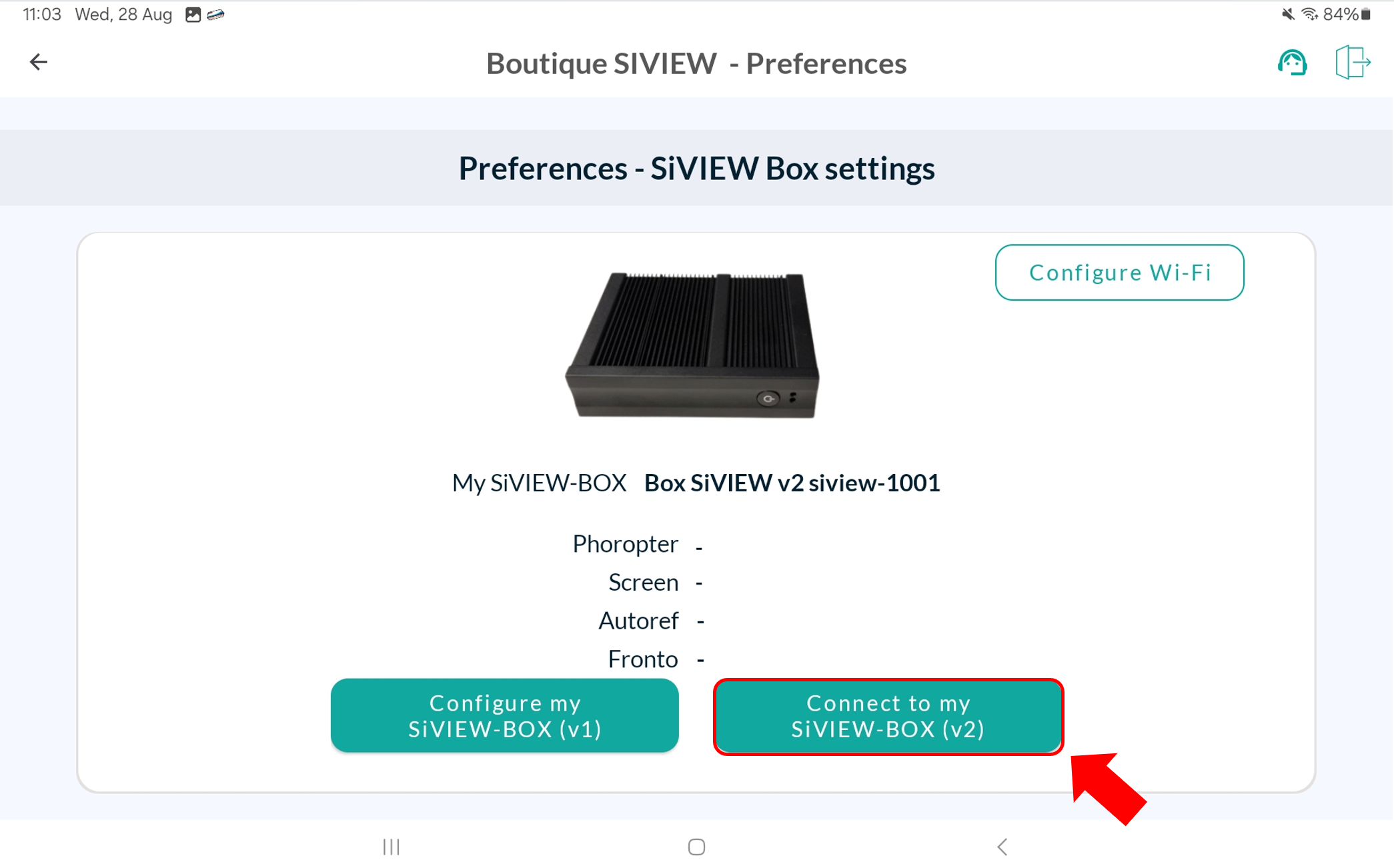
At this step, you should see the SiVIEW Box connected to your tablet, as well as the information for the refraction devices associated with the box. If no equipment is recognized, click the “Connect my SiVIEW-BOX (v2)” button to re-pair the box with the tablet.
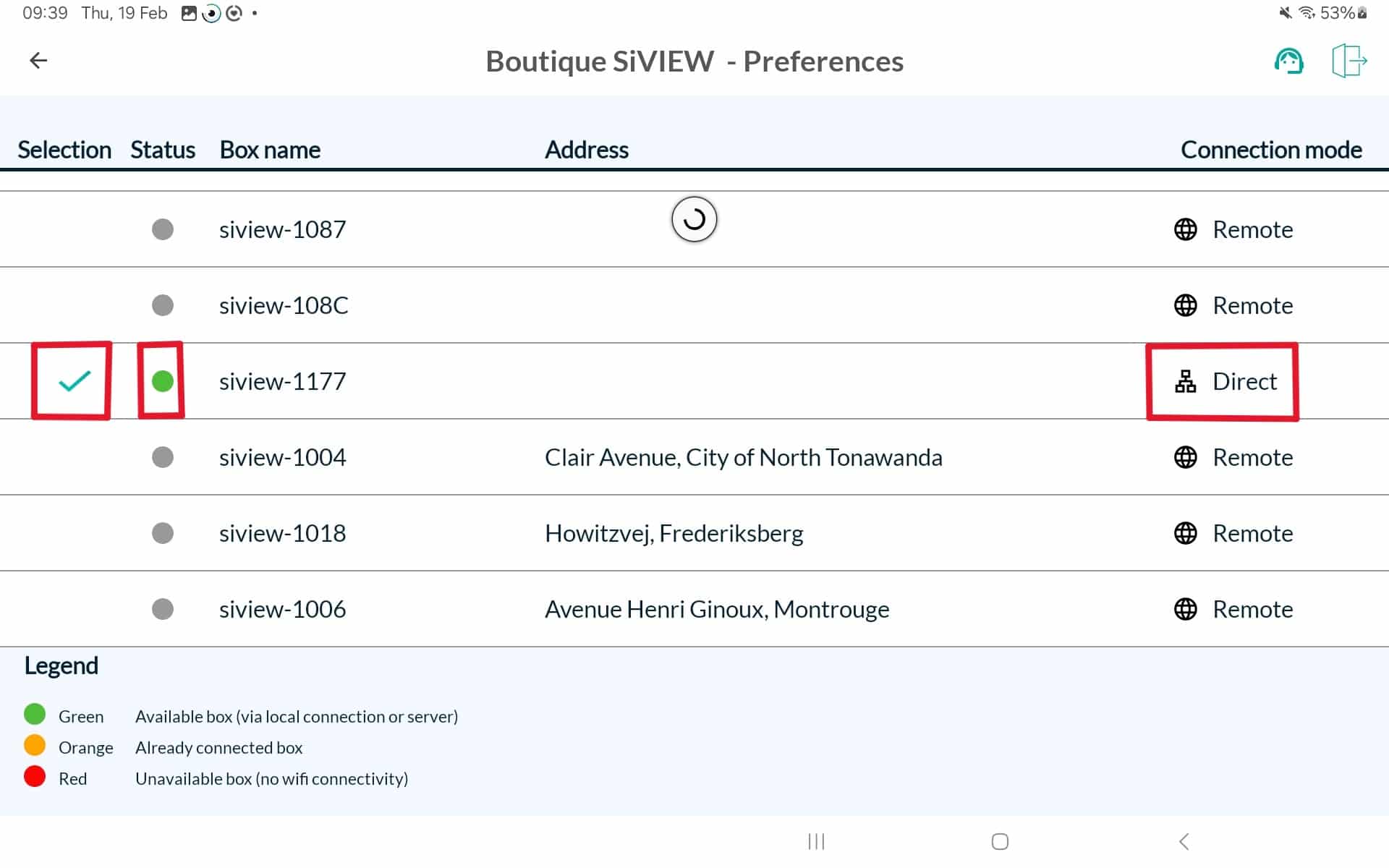
  1. Check that the connection status is indicated by a green dot, along with a check mark symbol, and that the connection mode is set to “Direct.” If the connection mode shows “Remote,” it means you are not connected to the box’s Wi-Fi. Connect to the correct network.

2. Confirm your selection. You will be automatically redirected to the box settings screen.
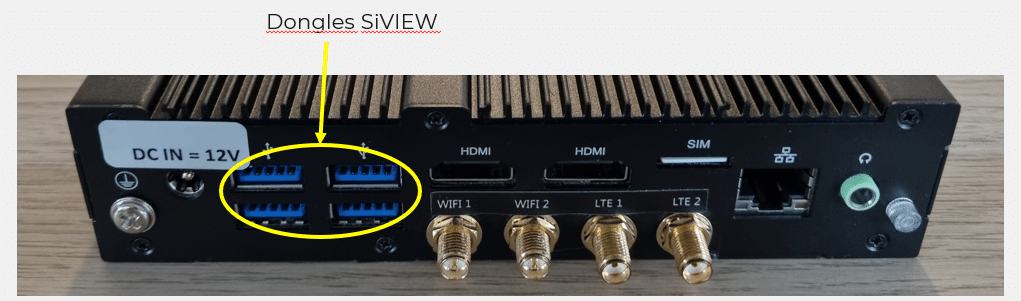
If your tablet still does not display the devices, unplug and then reconnect the dongles located at the back of the SiVIEW box. To refresh the device list, leave this screen and then return to it.
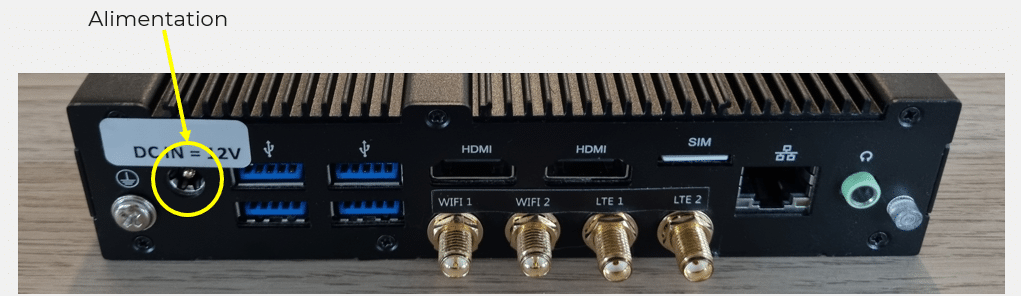
If the problem persists, unplug the power cable, wait a few seconds, then plug it back in.

  • When the box restarts, two beeps are emitted: the first when you reconnect it to the power supply, and the second a few minutes later, indicating that the box is ready to be used.

If the devices still do not appear, please do not hesitate to contact us.
Is your problem still unresolved?

Contact our Technical Support

Fill in our customer support form
or contact our specialists.