
Customizing your SiVIEW Access Password

This guide walks you through, step by step, on how to change or customize your password from the SiVIEW platform.

By following there instructions, you can quickly update your login information and secure your account.
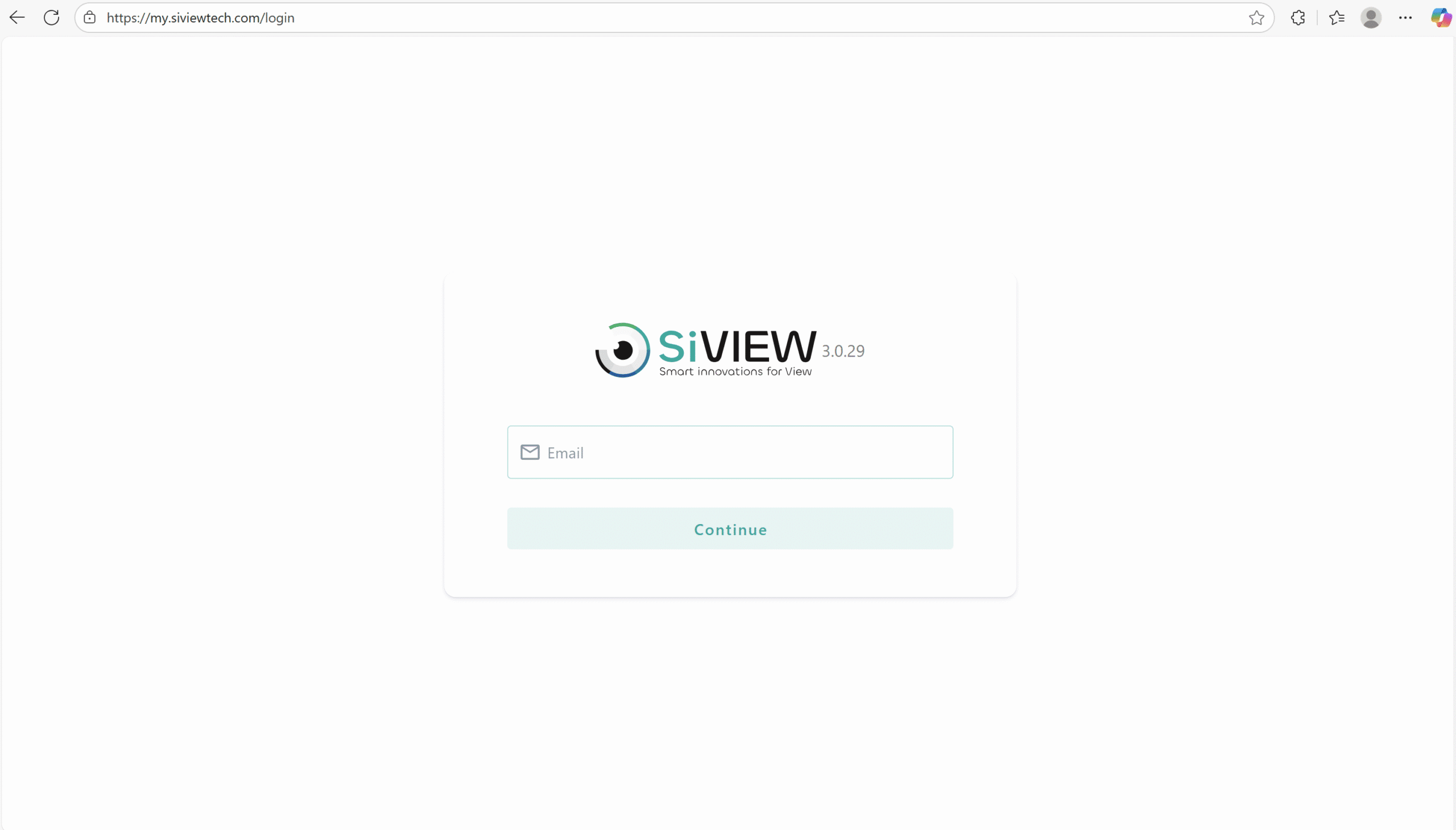
Step 1 : Log in to your SiVIEW customer portal

  • Go to your computer.
  • Open a web browser and enter the following adress, or click the link: https://my3.siviewtech.com/login
  • Enter your username and password (these are the same credentials you use to log in to the application on the tablet).

Step 2: Access your account settings

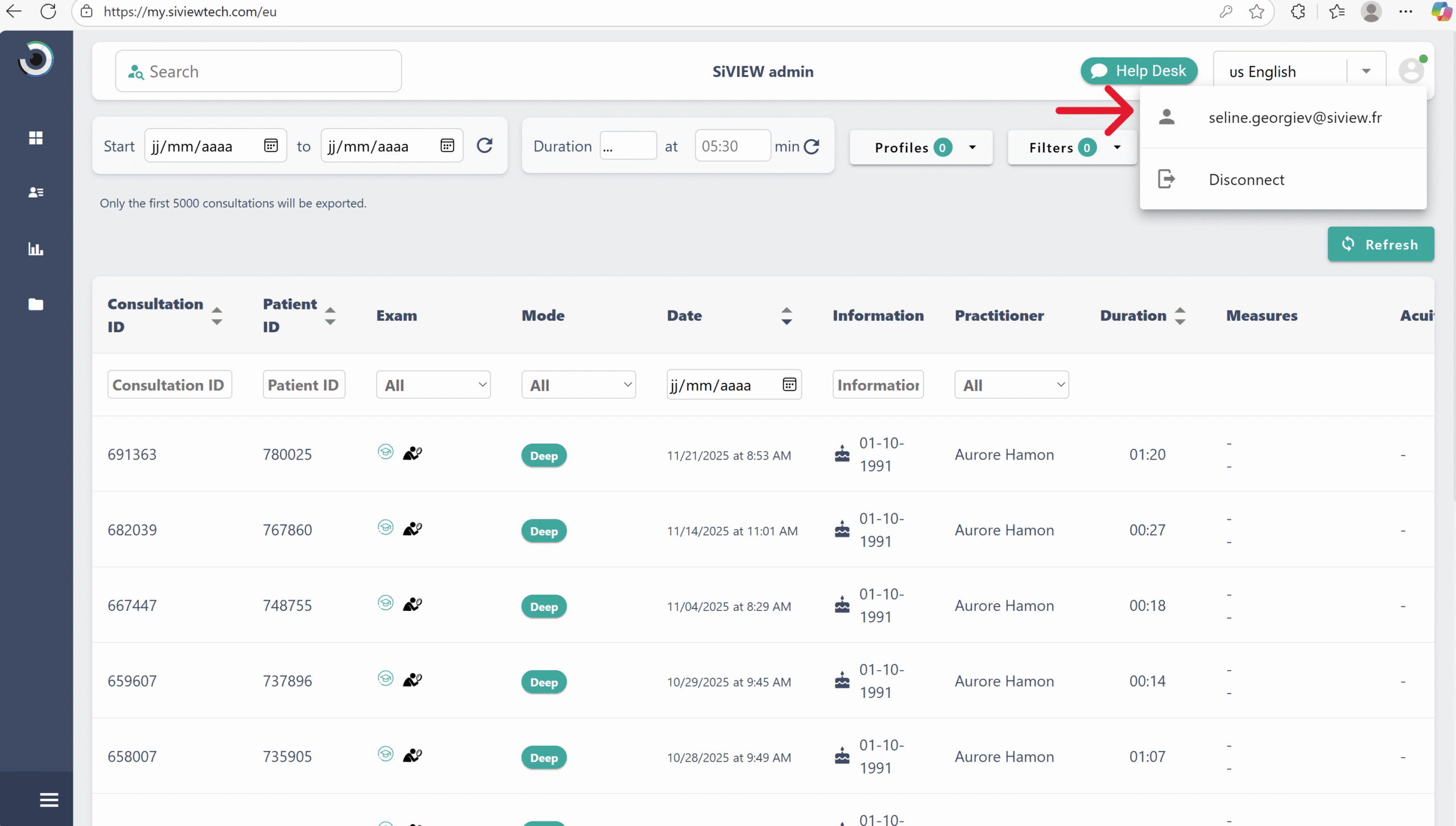
  • Click the icon at the top right of the screen, then click your login username.

Step 3: Change your password

Once in your account settings, follow the steps below to change your password:
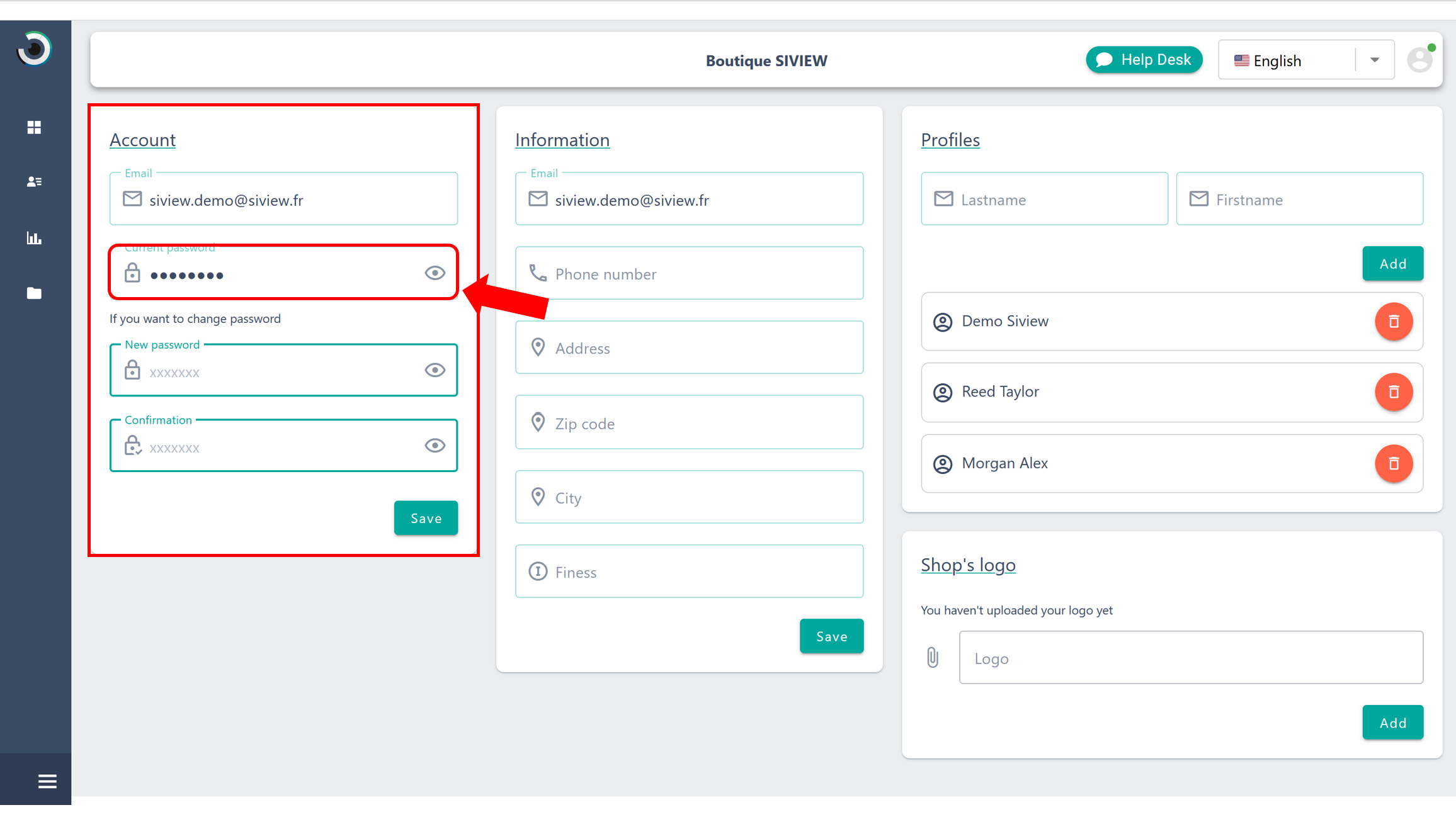
  • Go to your Account tab.
  • Enter your current password.

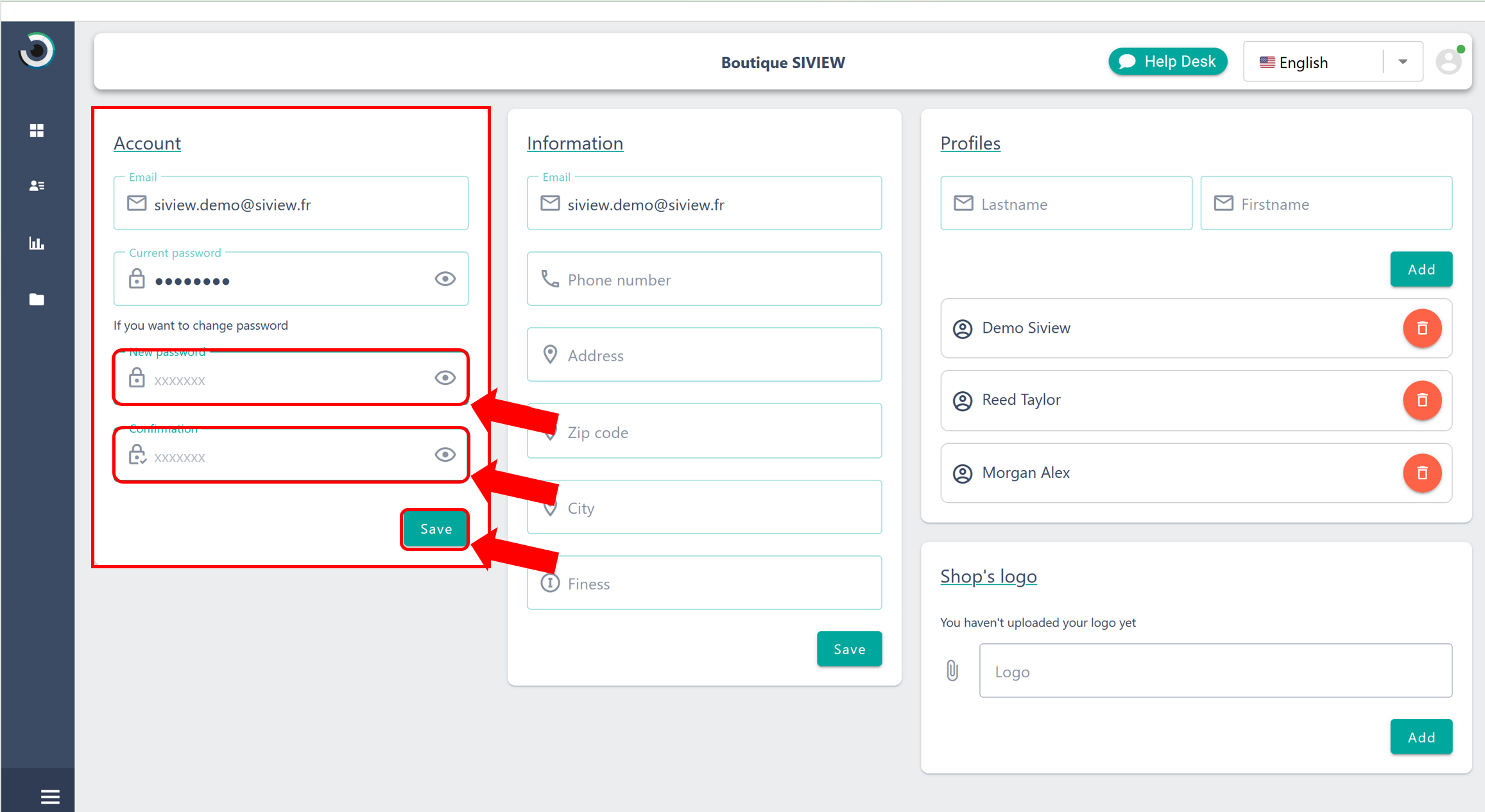
Enter your password while following SiVIEW’s security requirements:

  • Contains at least 8 characters.
  • Includes an uppercae letter, a lowercase letter, a number, and a special symbol.
  • Does not include repetitive seuquences or obvious personal information.

Re-enter your new password to confirm it, the click “Save”.

Tip: A secure password should be unique, sufficiently complex, and easy for you to remember. Avoid using obvious personal information.
How to keep your account secure

To protect your account, we recommend that you:

  • Change your password regularly.
  • Use a unique password for SiVIEW, different from your other accounts.
  • Do not share your password with anyone.

By following these simple steps, you can now update your SiVIEW password with confidence, ensuring your account remains secure. All that is left is to enjoy the SiVIEW Exam app by logging in with your new password !

Is your problem still unresolved?

Contact our Technical Support

Fill in our customer support form
or contact our specialists.