How to check that your tablet is properly connected to Wi-Fi and Internet

🤔 Problem description

  • The synchronization of eye exams on the website is not working.
  • The application does not seem to be up to date.
  • The application asks me to connect to the internet when I try to start it.
  • The wifi symbol on the tablet is displaying an exclamation dot.

🛠 Solution

To check if your tablet is properly connected to Wi-Fi and Internet please follow the steps below:

  1. Displaying the Wi-Fi menu
  2. Access Wi-Fi settings
  3. Check the Wi-Fi connection

Step 1: Displaying the Wi-Fi menu

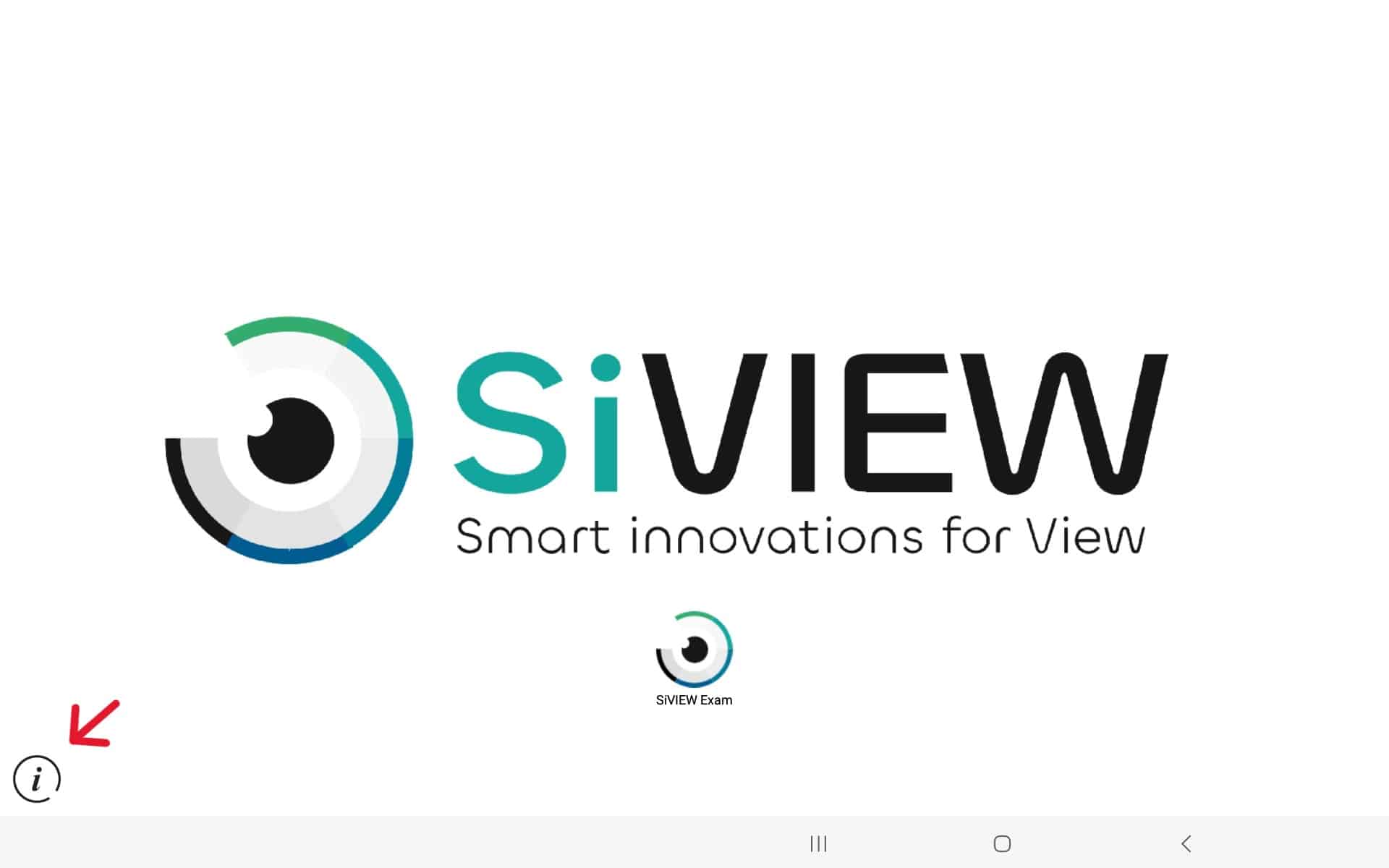
  • To access the Wi-Fi menu, tap the “i” icon located in the lower-left corner of your tablet screen, then tap “Settings“.

Step 2: Access the Wi-Fi settings

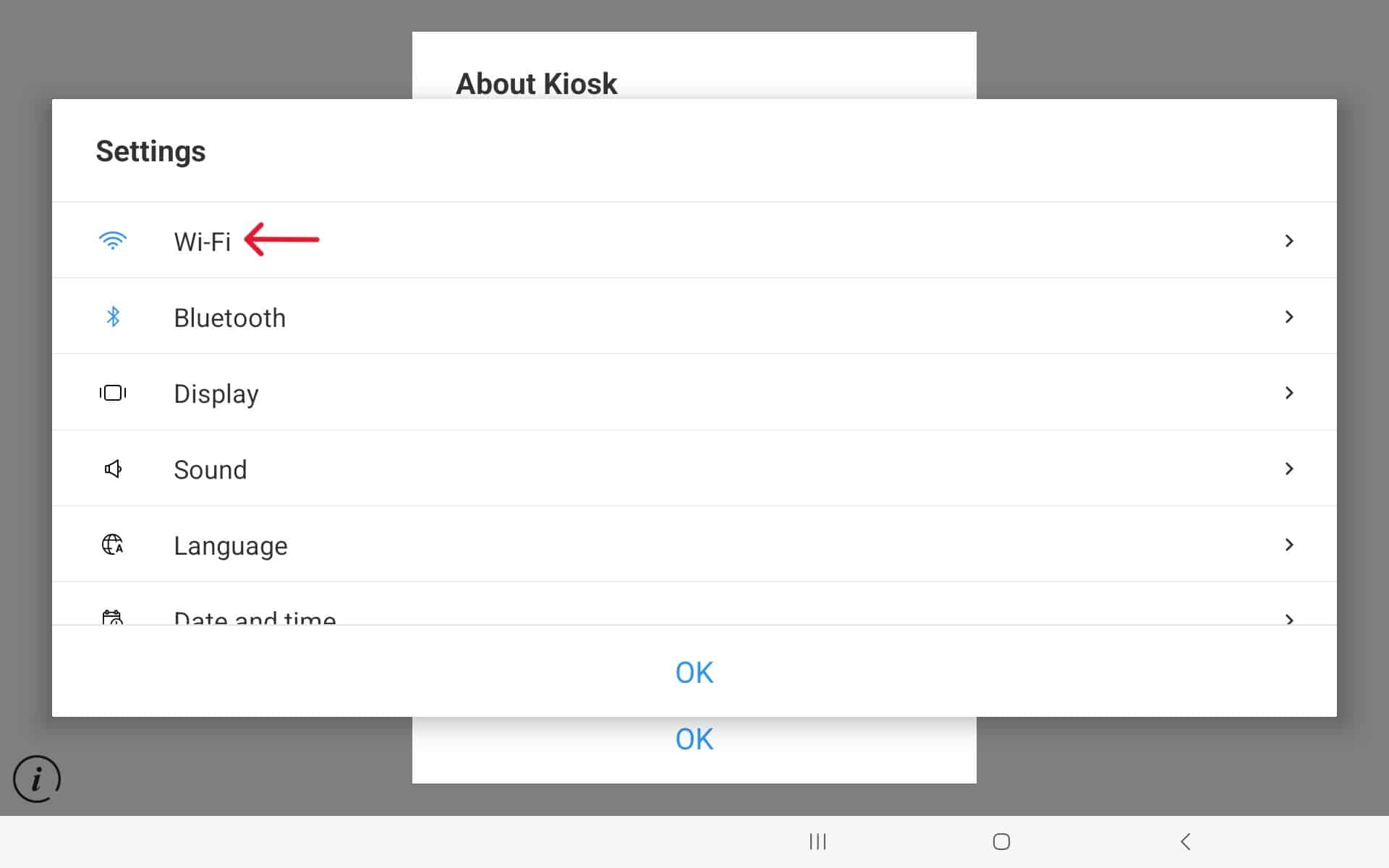
Select « Wi-Fi »

Step 3: Check the Wi-Fi connection

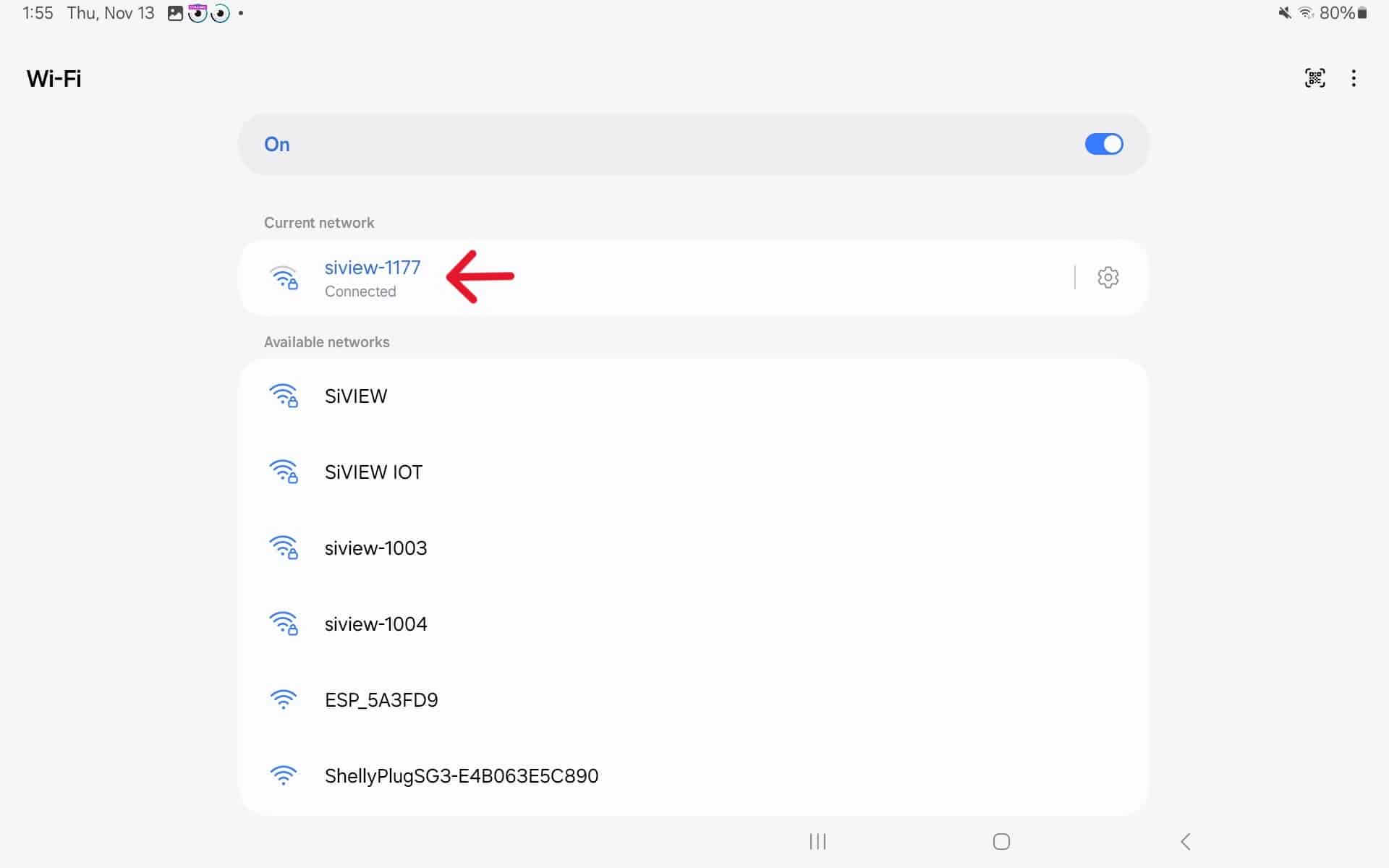
  • Make sure your Wi-Fi is turned on. If it isn’t, turn it on.
  • If the list of available Wi-Fi networks, find the network to your SiVIEW box. Its name should be “siview-(your SiVIEW box number)”.
  • If you are already connected, the word “Connected” should appear below the network name.
  • If you are not connected, or if you are conneted to a different Wif-Fi network, please connect to your SiVIEW box by selecting it.
  • The status under the network should display “Connected” (1), and the Wi-Fi symbol at the top right of the tablet should show two small arrows, one pointing up and the other pointing down (2).

Note: A tablet may be connected to Wi-Fi without being connected to the Internet.

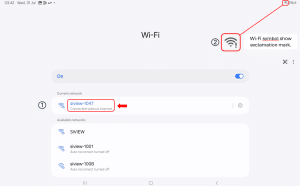
A mention “connected without internet” under the network name in the Wi-Fi settings (1) and an exclamation mark next to the Wi-Fi symbol (2) at the top right corner of the tablet indicates that you are connected without internet access.

In this case, please contact Technical Support here.

❔ Need more information ?

We hope this article has been helpful and that you have found all the answers to your questions. If you need further assistance, please feel free to contact us.

Is your problem still unresolved?

Contact our Technical Support

Fill in our customer support form
or contact our specialists.