
How to connect for the first time your tablet to your SiVIEW box

Here are the different steps to connect your tablet to your SiVIEW Box :

On the SiVIEW box:

  • Turn on your SiVIEW box minimum 2 min before starting the following steps


On the tablet:

Step 1: Access Wi-Fi settings and configure the network

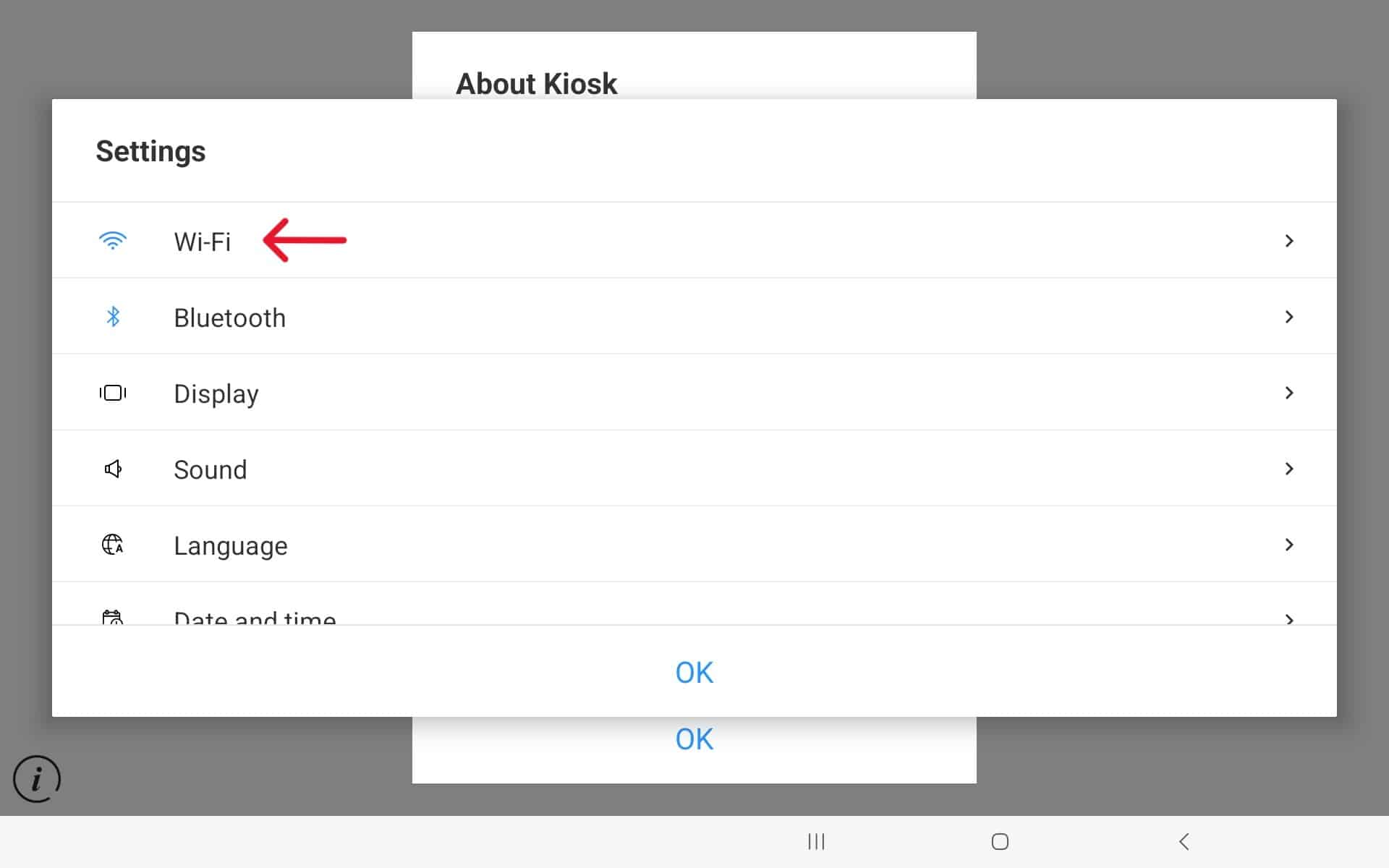
  • To access the Wi-Fi menu, tap on the “i” icon located in the bottom left corner of your tablet’s screen.
  • In the setting menu select “Wi-Fi
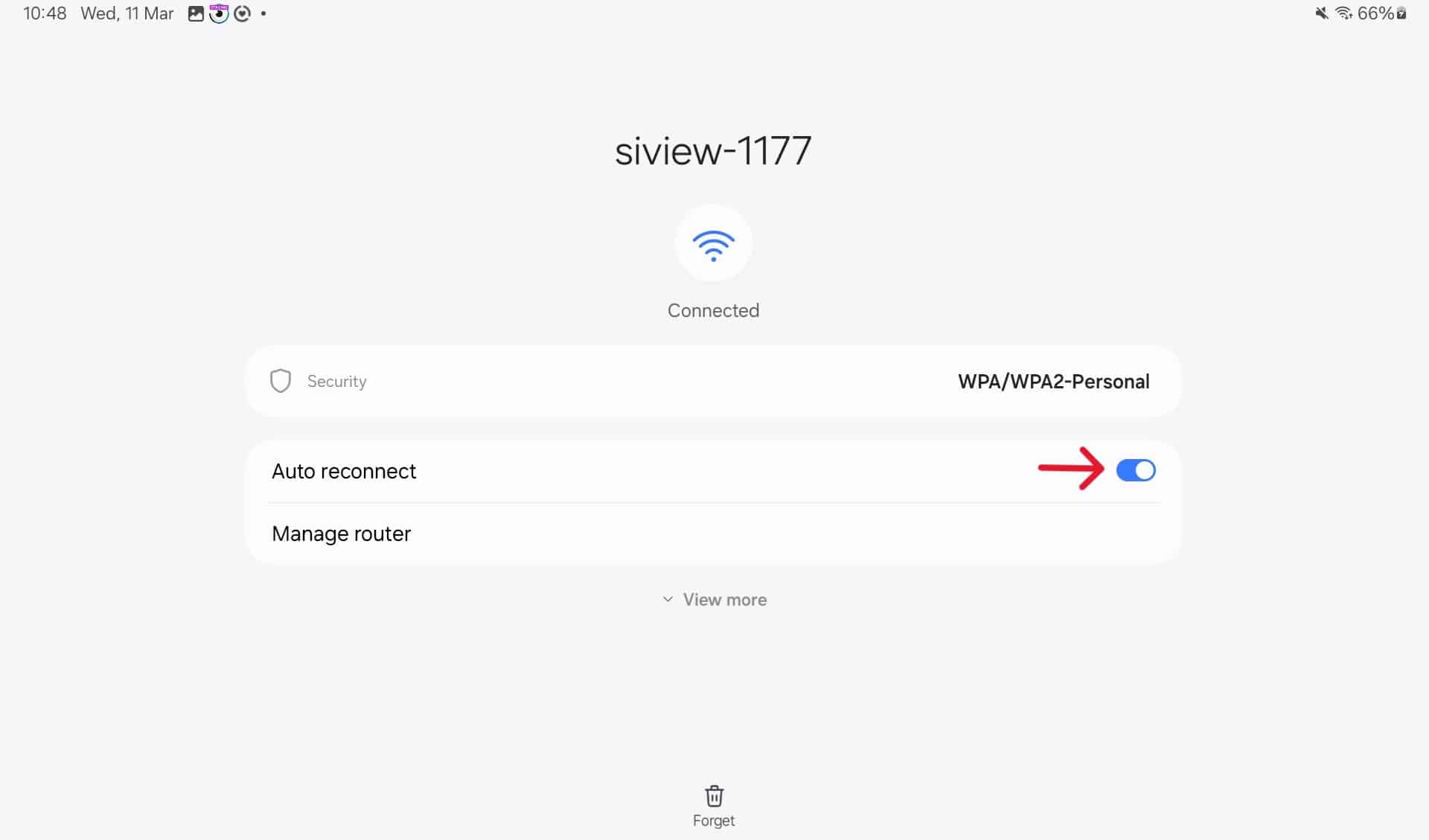
  • Verify that the tablet is indeed connected to the SiVIEW BOX network. The network name will always appear like this:  SiVIEW-XXXX (XXXX being the number of the box).

   Please don’t connect to another network.
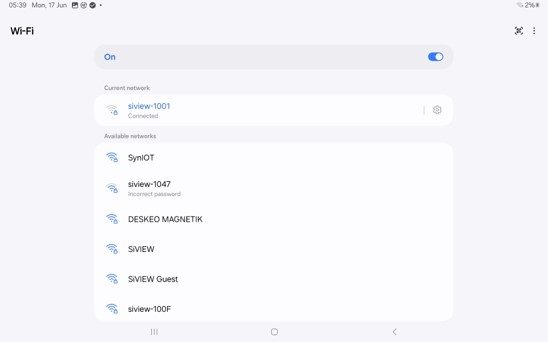
  • Verify that the network is configured for auto reconnect by clicking on the gear icon.

Step 2: Check the SiVIEW box configuration

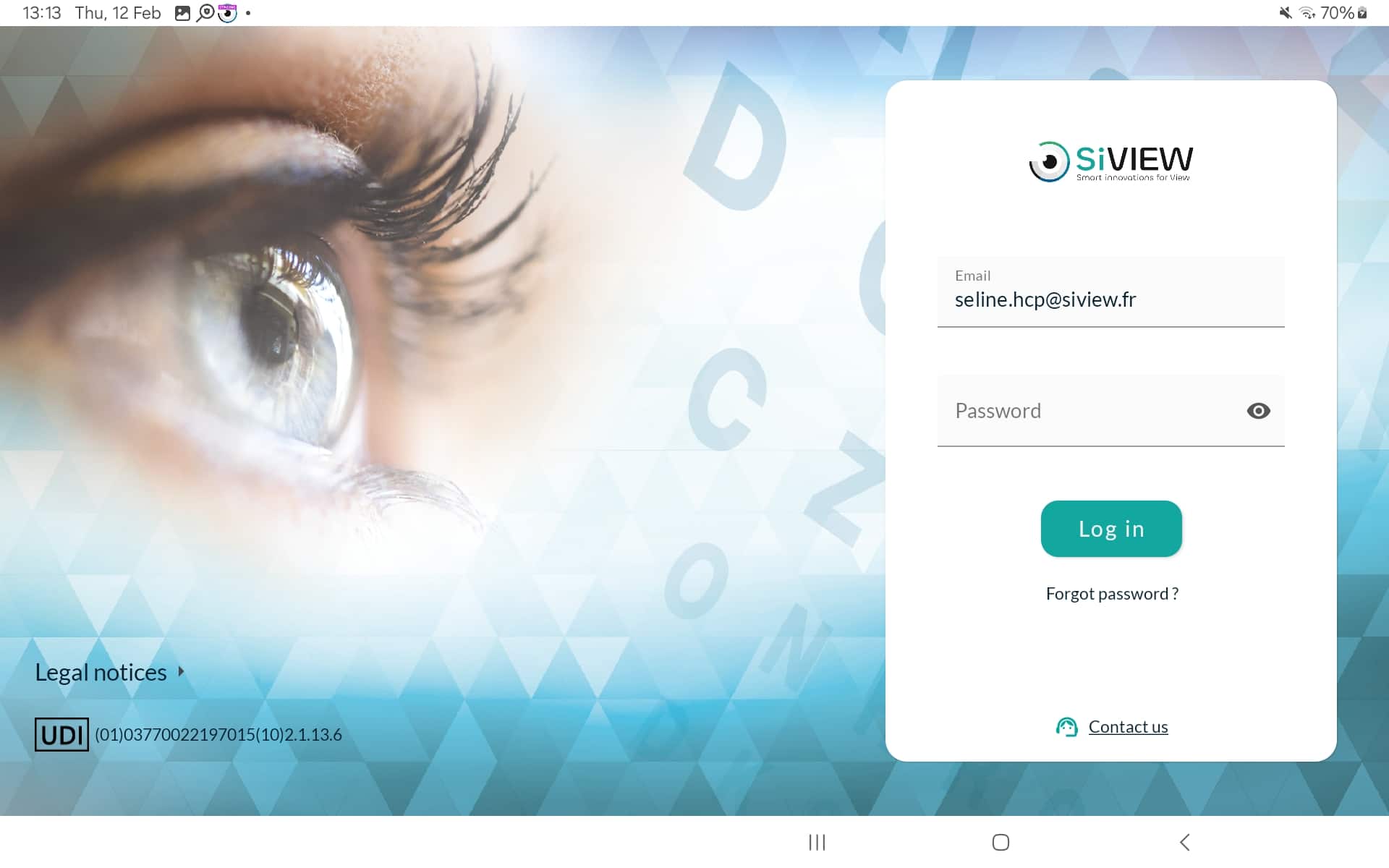
  • Go back to the SiVIEW homepage and launch the SiVIEW Exam application.
  • Enter your username and password

Notice : If this is your first time using the V2 application, you will be prompted to accept the terms of use.

To accept the terms of use, scroll down the text, select the ‘I accept’ checkbox, and enter the store’s name.
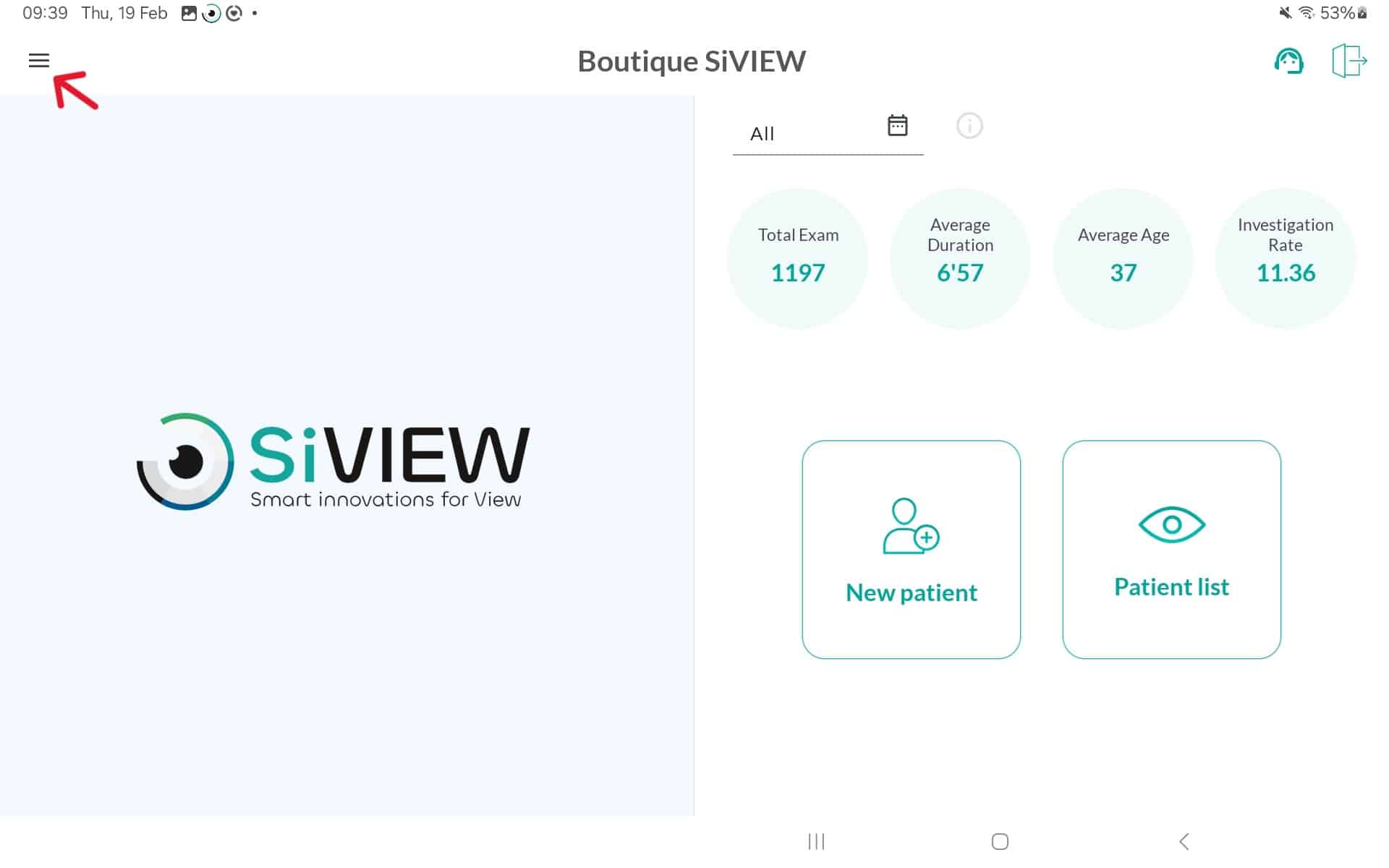
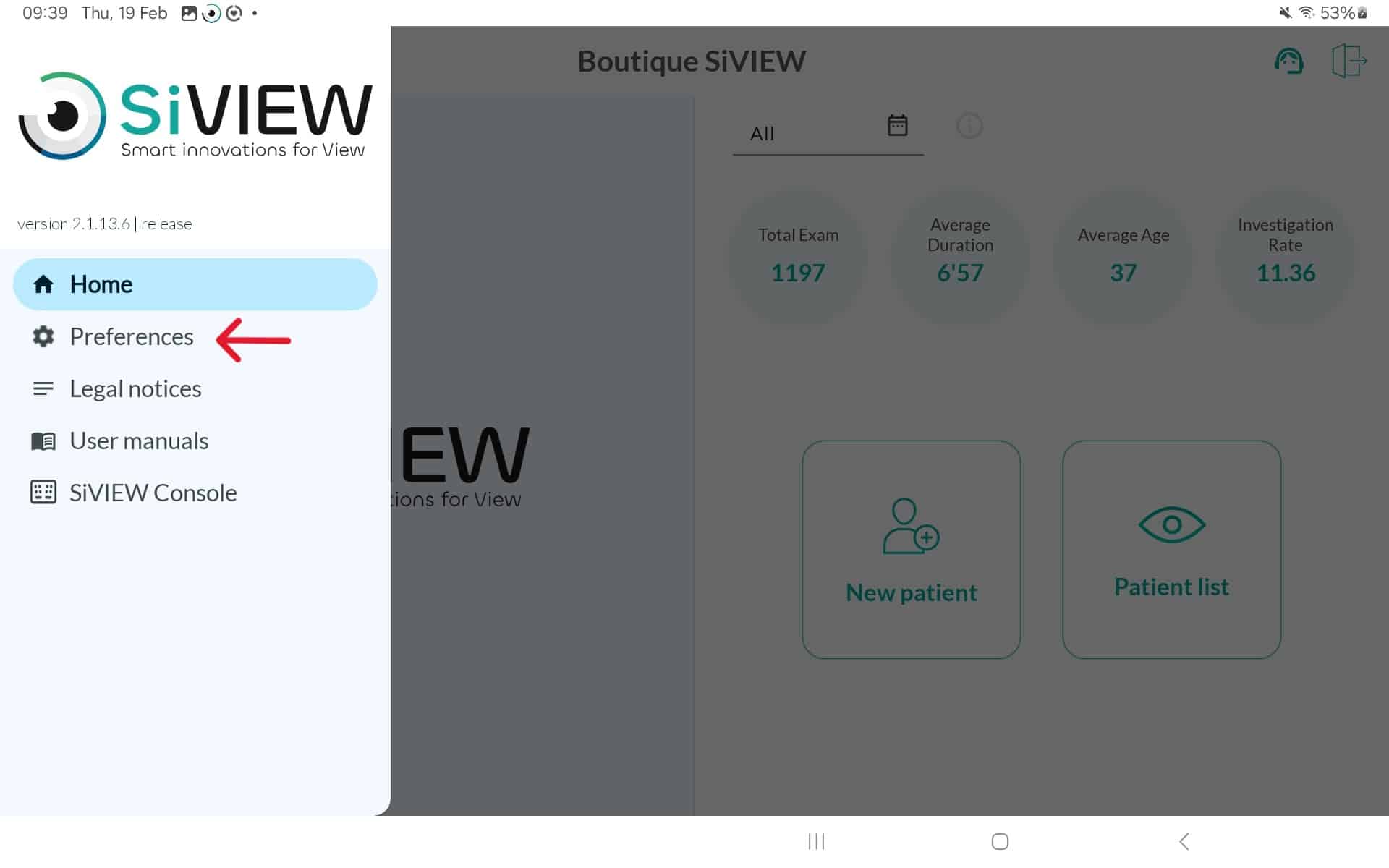
  • On the first page of the application: Go to the top left “burger” menu
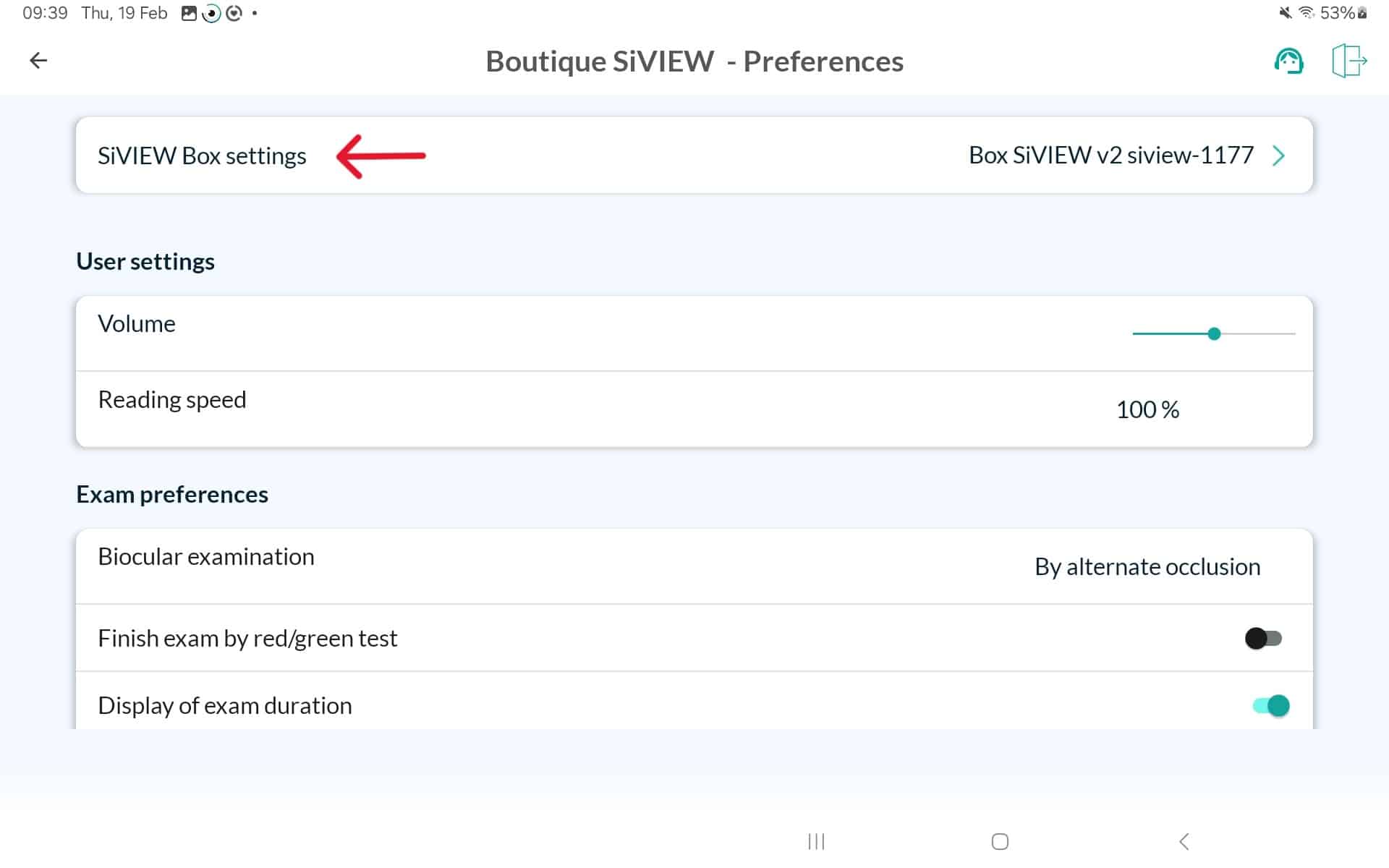
  • Then click on “Preferences
  • Then select “SiVIEW box settings” by clicking a few times on the name of the store at the top of your screen
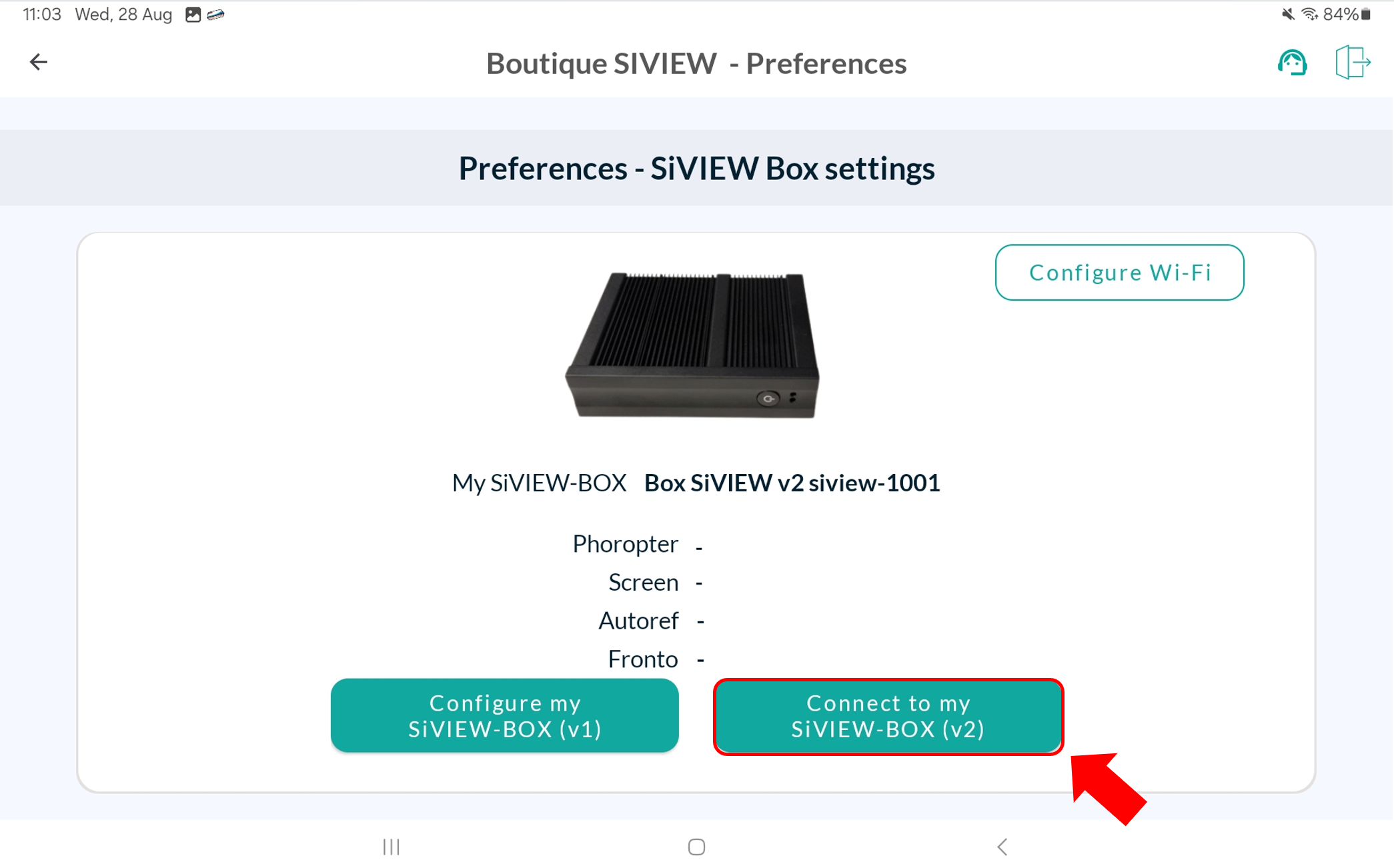
  • Press the green button “Connect to my SiVIEW box(v2)“.

Step 3: Create a direct link between the tablet and the box

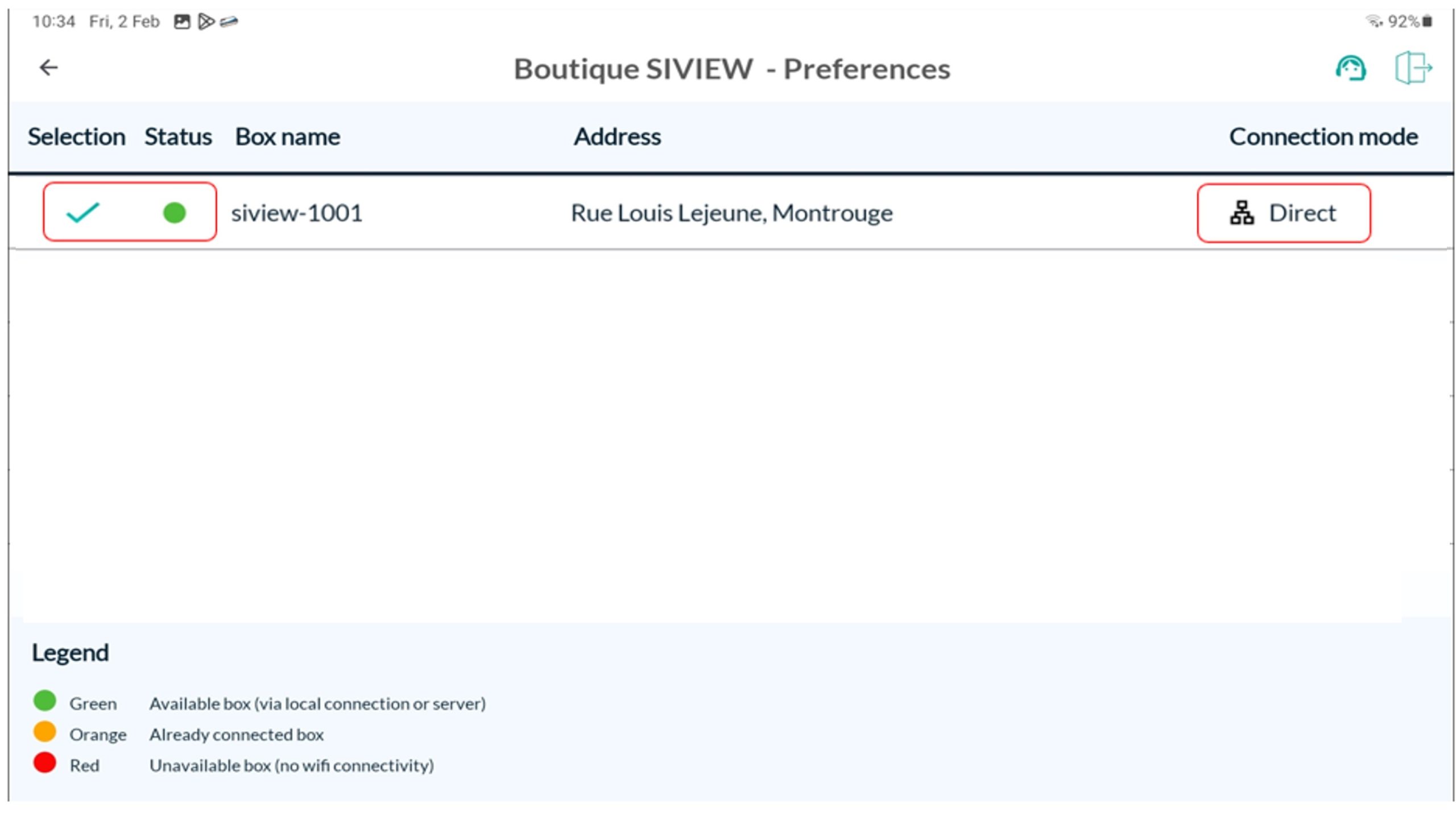
  • Click on the SiVIEW box number and check that your v2 box is properly connected (green checkmark + green dot = Direct)

Notice: If the “checked” symbol does not appear, it is imperative to click again on the box number to select the box.
Step 4: Check the functionality of the solution

Return to the application’s home page, click on “New Patient,” and perform a test examination.

Verify the operation of:

  • Phoropter changing lenses
  • Screen/projector chart
  • Autorefractor/lensmeter values transfer (if applicable).

If everything is working correctly, you can now connect your box to the internet by following our guide HERE.

Is your problem still unresolved?

Contact our Technical Support

Fill in our customer support form
or contact our specialists.